Connect Reverse ETL Source to Customer.io Audience Beta
3 minute read
This guide takes you through the steps to connect a Reverse ETL source to the Customer.io Audience destination. You can create a new segment or use an existing segment to sync the data.
The below steps assume that you have already set up a Reverse ETL source and configured the connection settings for the connected Customer.io Audience destination.
You can connect multiple Reverse ETL sources to the Customer.io Audience destination.
Customer.io segment settings
| Setting | Description |
|---|---|
| Choose whether to create a new Customer.io Segment | Specify whether you want to sync data to a new or existing Customer.io segment.
|
| Sync mode | RudderStack supports only Mirror mode for this integration. |
Mapping settings
Make sure that the users exist in Customer.io before adding them to any segment. Otherwise, such records will be ignored.
See the Customer.io Troubleshooting guide for more information.
Use this section to map the identifier warehouse column (that RudderStack uses to identify your records) to specific Customer.io segment fields. Note that you can map this warehouse column to either of these Customer.io segment fields: ID, Email, or CIO_ID.
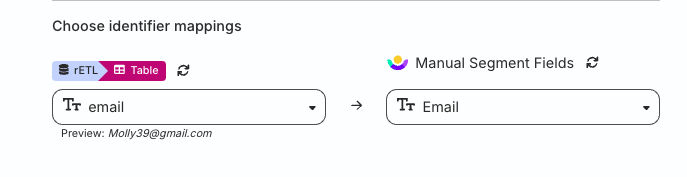
Schedule settings
RudderStack determines how and when to run a sync based on the sync schedule you set for your Reverse ETL connection.
| Schedule type | Description |
|---|---|
| Basic | Run syncs at a set interval, optionally starting from a specified time (UTC). If a start time is set, syncs run from that time until the end of that day. |
| CRON | Run syncs based on a specified CRON expression (in UTC). |
| Manual | Run syncs manually. |
Sync observability settings
| Setting | Description | ||||||
|---|---|---|---|---|---|---|---|
| Retain sync logs | This setting is toggled on by default and instructs RudderStack to store the sync logs in your warehouse. You can also configure the below settings:
| ||||||
| Retry failed records | This setting is toggled on by default and causes RudderStack to continually retry sending the failed records. | ||||||
| Retain and show failures | This setting is toggled off by default. Turn it on to have RudderStack write the error recorded for every failed record to a failed records table in your warehouse and show it in the sync’s failed records view. It applies from the next sync and can take up to a minute to reach your data plane.
|
Storing sync logs, snapshot tables, and failed records may incur additional warehouse costs.
record event structure
The Customer.io Audience destination supports only record events.
A sample record event that RudderStack sends to Customer.io segments is shown:
{
  "action": "insert",
  "channel": "sources",
  "context": {
    "sources": {
      "job_id": "<2s4ZjYKSKztME0SmfBUB5t8KA3j>",
      "job_run_id": "cu9na4c7miqjfjeogkv0",
      "task_run_id": "cu9na4s7miqjfjeogkvg",
      "version": "local"
    }
  },
  "fields": {},
  "identifiers": {
    "id": “30”
  },
  "messageId": "57f32b79-f030-4bdc-8f24-4f573f4acf99",
  "receivedAt": "2025-01-24T11:10:58.799Z",
  "recordId": "4",
  "request_ip": "[::1]",
  "rudderId": "0afd110a-4d8a-42c5-a959-05d3ef3b4e87",
  "type": "record",
  "userId": "36b9732a-cd10-4aec-b03e-36969a9b14a2"
}
FAQ
Why can’t I add a Reverse ETL source from the destination page?
The Reverse ETL feature supports only source-driven pipeline configuration. It means that you must configure a Reverse ETL source in RudderStack and then connect it to a new or existing destination. Note that this destination should not be connected to any other source.
See Reverse ETL FAQ for more information.
